Help
Captionry, step by step
Captionry adds captions to your videos, on your iPhone. These are the few things people ask about most.
- What does “Polish captions with AI” do?
- How many free minutes do I get?
- How do I make captions in two languages?
- Can I edit captions in another app?
- How do I stop the same word being written wrong?
- Where are my exported videos?
What does “Polish captions with AI” do?
After Captionry makes captions on your iPhone, it can fix speech-to-text mistakes such as wrong names or look-alike words.
What Captionry sends includes the caption text with its timing, the languages and any caption rules you saved, plus the video’s length and a random installation code, to count your free minutes. It never sends video or audio, and uses the text only to polish and translate your captions. Captionry asks once, on the start screen, before making captions; you can turn it on or off any time in Settings. With AI on it also translates your caption lines.
If polishing fails or you are offline, your captions stay as they were. Tap Undo to go back to the version before polishing.

How many free minutes do I get?
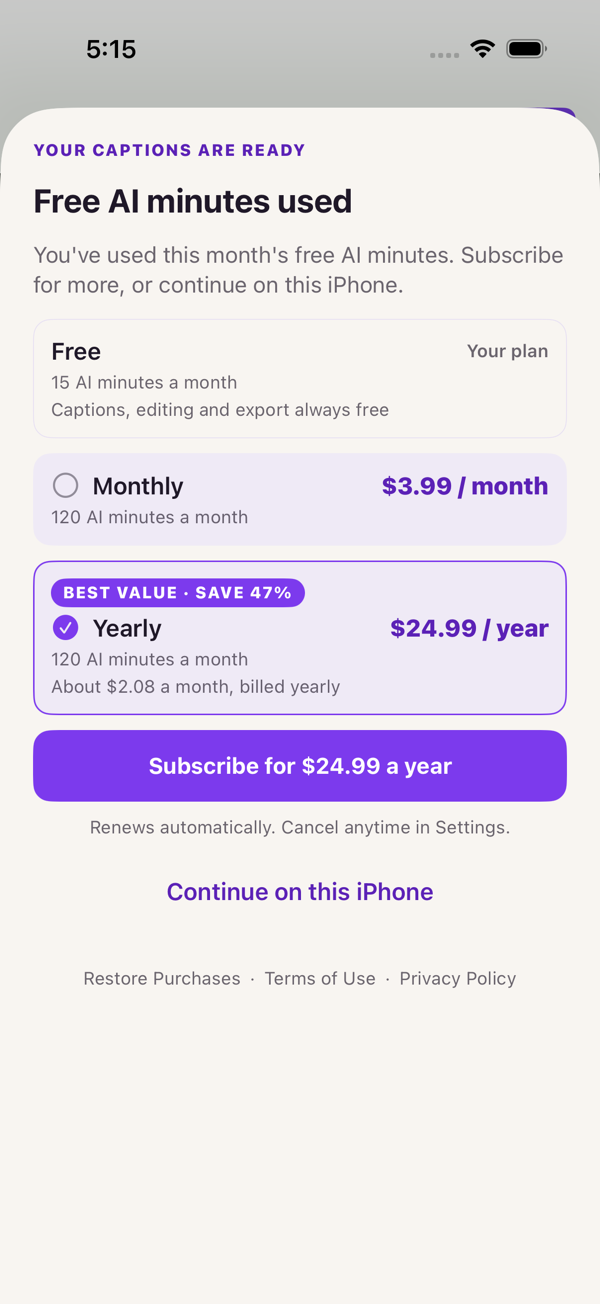
Making captions, editing and exporting are free, with no watermark. AI polish includes 15 free minutes of video each month.
When they run out, Captionry tells you and offers an optional subscription with more minutes, or you continue on this iPhone and AI is back next month. The price is shown by the App Store. Everything else stays free.
How do I make captions in two languages?
On the start screen, or in the editor under Languages, pick the language spoken, then Caption line 1 and Caption line 2: what was said, or another language.
Both lines appear in the preview and in the exported video. With AI on, Captionry translates the caption text, so you can even speak English and caption in two other languages. Without AI, your iPhone translates on its own and may ask to download a language the first time.

Can I edit captions in another app?
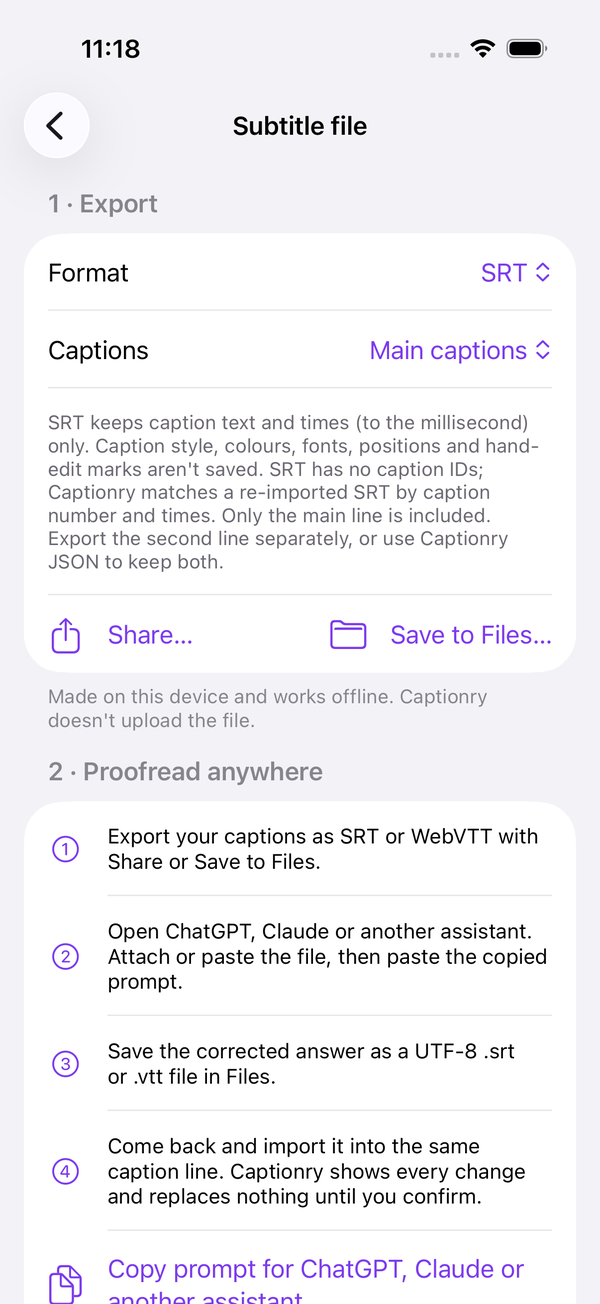
Yes. Open a video, tap Languages, then Subtitle file under More options. Export SRT, WebVTT or Captionry JSON, edit it anywhere, and import it back.
Before anything changes, Captionry shows you a preview of every difference. Files are created on your iPhone; Captionry does not upload them.
How do I stop the same word being written wrong?
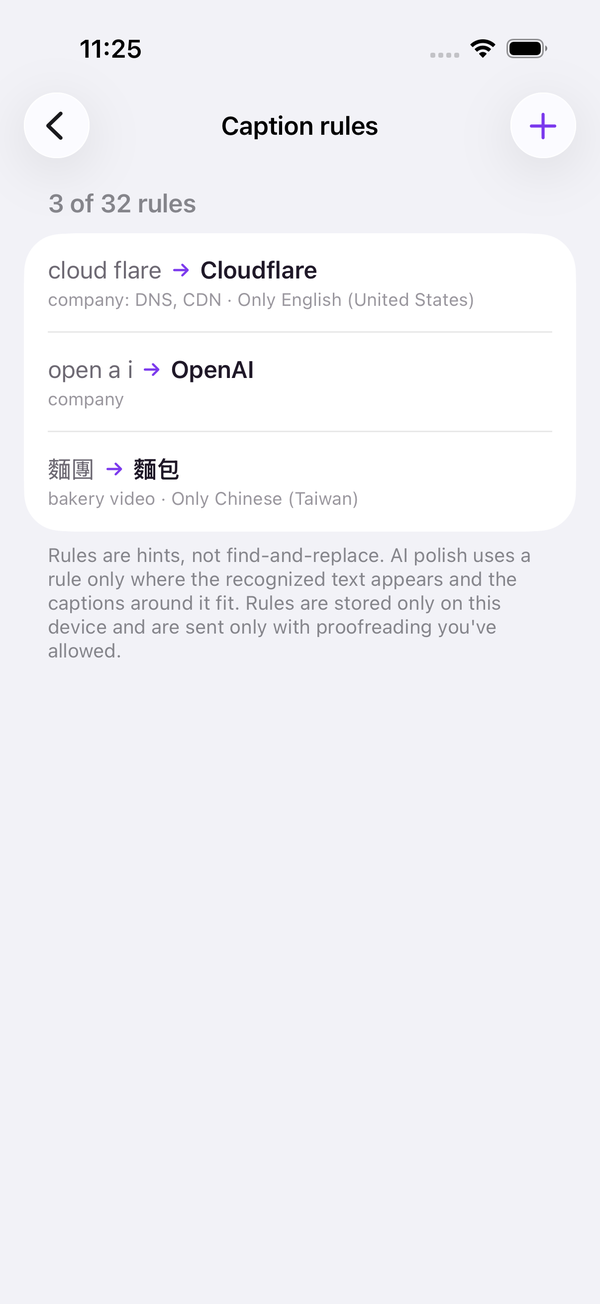
In Languages, under More options, add a Caption rule: “recognized as” something, “write as” something else. Captionry applies it every time.
For names and brands, add them to Names & terms in Settings. They are handed to on-device speech recognition so it listens for them. Both lists stay on your iPhone.
Where are my exported videos?
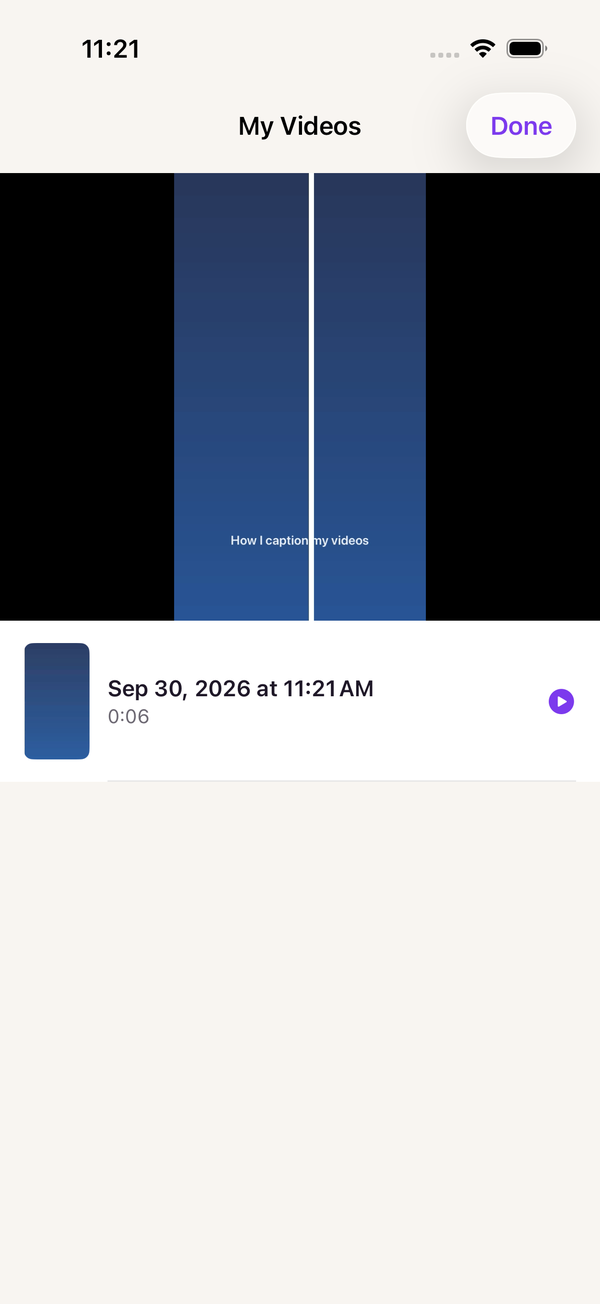
After an export, Captionry opens My Videos: the videos it saved to your Photos, in an album called Captionry. Tap one to watch it, share it, or delete it.
You can also open My Videos from the home screen at any time. Captionry only asks Photos permission after your first export.